
 AI video editor · polished cut
Generated video will be displayed here
Motixo video workflow
AI Video Editor on Motixo
Polish generated or filmed clips — pacing cues, visual restyle, and cleanup so cuts feel publish-ready.
- Start with a clear brief
- Built for real production use
- Explore multiple directions
How to use AI Video Editor
Step 1
Import the clip
Bring a generated or filmed video into the AI video editor.
Step 2
Describe the edit
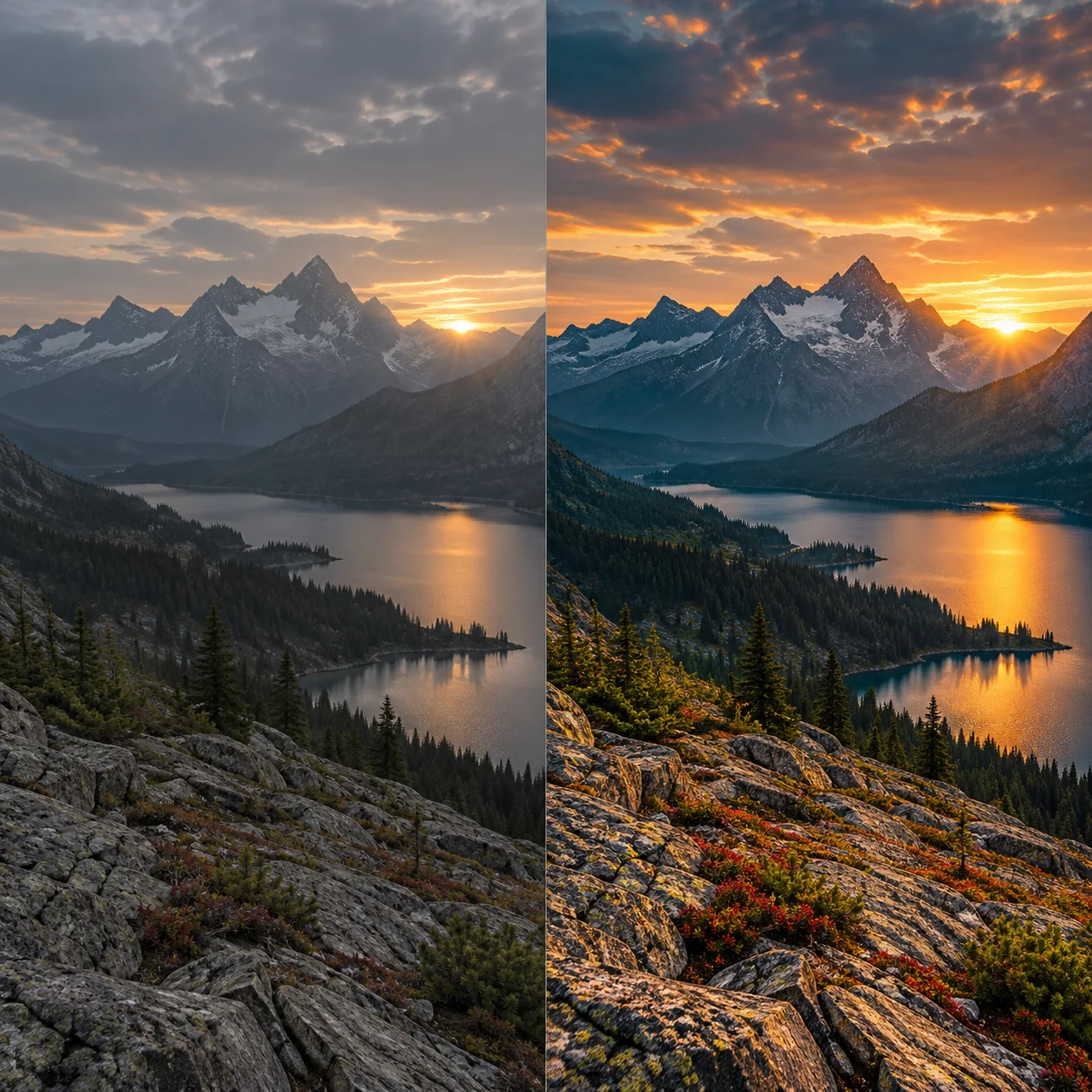
Ask for tighter pacing, warmer grade, or cleaner framing.
Step 3
Export the cut
Download a social-ready version.
AI Video Editor Features
Prompt-assisted polish
Describe the finish instead of scrubbing every parameter.
Look and grade shifts
Move from flat to cinematic without a full color suite.
Social cut focus
Keep AI video editor outputs short and platform-friendly.
Works with Motixo generations
Edit text to video and image to video results in one place.
AI Video Editor Examples

AI Video Editor FAQ
It accelerates polish and restyle. Complex multi-track timelines still belong in a dedicated NLE.
Try AI Video Editor
Start with one simple brief, then tune the lighting, style, and framing until it fits your campaign.